Support our educational content for free when you purchase through links on our site. Learn more
What Software Do I Need to Create 3D Models for Printing? 🖥️ (2026)

So, you’ve got your 3D printer ready to roll, but there’s one crucial question buzzing in your mind: What software do I actually need to create 3D models for printing? Whether you’re dreaming of crafting intricate miniatures, functional replacement parts, or artistic sculptures, the right software can make or break your 3D printing journey.
Here’s a fun fact to kick things off: over 70% of 3D printing beginners say that choosing and learning modeling software is their biggest hurdle. But don’t sweat it! In this comprehensive guide, we’ll walk you through everything—from beginner-friendly tools like Tinkercad to powerhouse software like Fusion 360 and Blender. Plus, we’ll reveal insider tips on slicing, repairing, and even printing multi-color or flexible objects. By the end, you’ll know exactly which software suits your style, skill level, and project goals. Ready to turn your ideas into reality? Let’s dive in!
Key Takeaways
- No one-size-fits-all: The best 3D modeling software depends on your experience and project complexity.
- Start simple: Tools like Tinkercad and SelfCAD are perfect for beginners.
- Power up: For precision and complex designs, Fusion 360 and Blender are industry favorites.
- Don’t forget slicing: Software like Cura and PrusaSlicer are essential to prepare your model for printing.
- Repair and optimize: Use tools like Meshmixer to fix common 3D model errors before printing.
- Creative possibilities: You can print multi-color, flexible, and even recycled-material objects with the right software and settings.
Curious about how to print objects with moving parts or large-scale models? Keep reading — we’ve got you covered!
Table of Contents
- ⚡️ Quick Tips and Facts About 3D Modeling Software for Printing
- 🔍 The Evolution of 3D Modeling Software: From Sketches to Slices
- 🤔 What Is 3D Printing and How Does It Work?
- 🎯 How Precise Is 3D Printing? Understanding Accuracy and Resolution
- 🛠️ What Software Do I Need to Create 3D Models for Printing?
- 📏 Does the Size of My 3D Printer Limit the Size of My Models?
- 🔄 Can I Print Objects with Moving Parts? Tips for Functional Prints
- ⏳ How Long Does It Take to 3D Print an Object? Factors That Affect Print Time
- 🏭 Common Applications of 3D Printing: From Hobbyists to Industry
- 🔧 Printing Replacement Parts: Can 3D Printing Save the Day?
- 🌈 Printing in Multiple Colors: What You Need to Know
- 🧩 Printing Flexible and Transparent Objects: Materials and Software Tips
- 🧪 How Filament Type Affects Print Quality: Choosing the Right Material
- 🏗️ Printing Large-Scale Objects on Desktop 3D Printers: Is It Possible?
- 🧪 Creating Functional Prototypes: Software and Printing Tips
- ♻️ Using Recycled Materials for 3D Printing: Eco-Friendly Options
- 🖨️ How to Choose the Right 3D Printer and Software for Your Projects
- 🛡️ Ensuring Structural Integrity in Your 3D Prints: Design and Software Tricks
- 🔍 Printing Intricate Details: Software Settings and Design Tips
- 📚 Resources and Communities for 3D Modeling and Printing Enthusiasts
- 💡 Conclusion: Mastering 3D Modeling Software for Your Printing Success
- 🔗 Recommended Links for 3D Modeling and Printing Software
- ❓ Frequently Asked Questions About 3D Modeling Software
- 📖 Reference Links and Further Reading
Alright, let’s dive into the digital deep end! You’ve got a shiny new 3D printer, or you’re dreaming of one, and a head full of incredible ideas. But there’s a crucial step between that spark of genius and holding a physical object in your hand: creating the 3D model. This is where the magic really begins, and we at 3D Printed™ are here to be your guides. The question we hear all the time is, “What software do I need to create 3D models for printing?“
Well, grab a beverage of your choice, because we’re about to unpack everything. And we mean everything.
⚡️ Quick Tips and Facts About 3D Modeling Software for Printing
In a hurry? Here’s the lowdown on 3D modeling software:
- No Single “Best” Software: The right software depends entirely on what you want to create and your skill level. A simple keychain has different needs than a complex mechanical part.
- Three Main Categories: Software generally falls into three camps: CAD (Computer-Aided Design) for precise, functional parts; Sculpting for organic, artistic models; and Slicers, which are essential for everyone as they prepare the model for the printer.
- Free Options Are Powerful: You don’t need to spend a fortune! Many incredible, industry-standard programs like Blender and powerful slicers like UltiMaker Cura and PrusaSlicer are completely free.
- Beginner-Friendly Tools Exist: Don’t be intimidated! Programs like Tinkercad are designed to be incredibly easy to learn, often getting you from zero to your first model in under an hour.
- Every Print Needs a Slicer: No matter how you create or acquire your 3D model (a
.STLor.OBJfile), you must process it through a slicer. This software “slices” the model into layers and generates the G-code instructions your printer understands. - File Repair is a Skill: Sometimes, 3D models have errors—holes, non-manifold edges, etc. Learning to use a repair tool like Meshmixer or the built-in functions in your slicer can be a lifesaver.
🔍 The Evolution of 3D Modeling Software: From Sketches to Slices
Believe it or not, the roots of 3D modeling stretch back to the 1960s, long before anyone had a 3D printer on their desk. Early CAD programs were revolutionary, allowing engineers at massive automotive and aerospace companies to draft complex designs on a computer screen. These were the digital ancestors of the powerful tools we use today.
For decades, this technology was locked away in high-tech labs. But as computers became more powerful and accessible, so did the software. The rise of the open-source movement and the maker community in the 2000s blew the doors wide open. Suddenly, programs that once cost thousands were available for free, and new, user-friendly tools emerged, designed specifically for the burgeoning world of 3D Printing Innovations. This shift democratized design, putting the power to create in the hands of hobbyists, artists, and entrepreneurs everywhere.
🤔 What Is 3D Printing and How Does It Work?
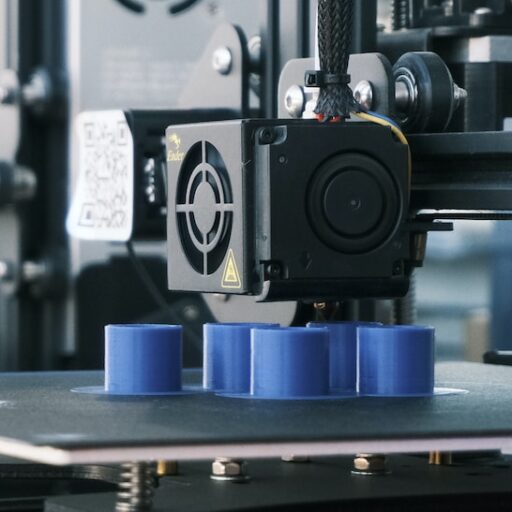
At its core, 3D printing, or additive manufacturing, is the process of building a three-dimensional object layer by layer from a digital file. Think of it like a hot glue gun building an object from the ground up, one thin layer at a time.
Here’s the basic workflow:
- Create or Download a Model: You design a 3D model using software or download a pre-made one from a site like Thingiverse.
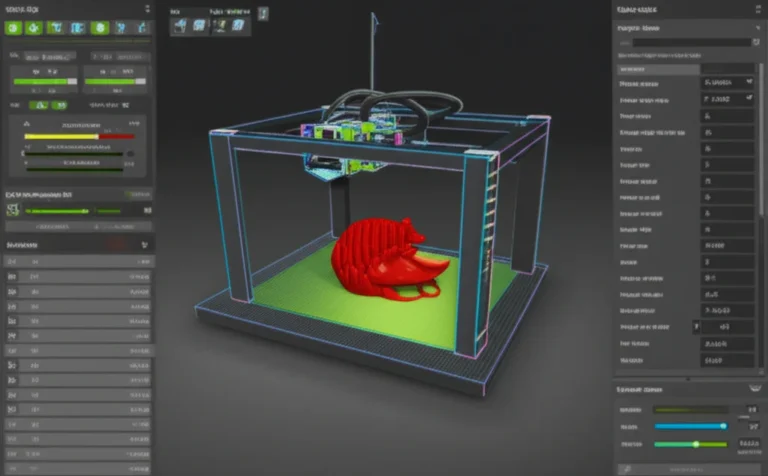
- Slice the Model: You open this model in a slicing software. The slicer converts the model into hundreds or thousands of horizontal layers and generates a file called G-code.
- Send to Printer: You send the G-code to your 3D printer (usually via SD card, USB, or Wi-Fi).
- Print: The printer reads the G-code and meticulously builds the object, layer by tiny layer, until your digital design becomes a physical reality.
This is fundamentally different from traditional subtractive manufacturing, where you start with a block of material and cut away at it to create a shape.
🎯 How Precise Is 3D Printing? Understanding Accuracy and Resolution
“How precise can this thing get?” is a question we get a lot. The answer is: amazingly precise, but it depends on the printer and your settings.
- Layer Height (Resolution): This is the thickness of each individual layer. A standard quality print might have a layer height of 0.2mm, while a high-detail print could go down to 0.1mm or even smaller. Thinner layers mean a smoother finish and more detail, but they also dramatically increase the print time.
- XY Accuracy: This refers to the precision of the printer’s movements in the horizontal plane. Most modern consumer printers can achieve remarkable accuracy, but it’s influenced by the printer’s mechanical soundness and calibration.
- Nozzle Size: The diameter of the hole in the printer’s nozzle (typically 0.4mm) also limits the finest details you can produce.
For most hobbyist applications, the precision is more than enough. For engineering-grade parts where tight tolerances are critical, higher-end machines and careful calibration are key.
🛠️ What Software Do I Need to Create 3D Models for Printing?
Okay, the main event! The software you need is a cocktail of a few different types. You’ll need a modeling program to create the shape and a slicer to prepare it for printing. Let’s break down the best options in our 3D Design Software guide.
1. Beginner-Friendly 3D Modeling Software for Starters
If you’re new to 3D design, you don’t want to be wrestling with a thousand confusing buttons. You want to start making. These tools are your best friends.
Autodesk Tinkercad
| Feature | Rating (1-10) |
|---|---|
| Ease of Use | 10/10 |
| Functionality | 6/10 |
| Cost | 10/10 (Free) |
| Best For | Absolute beginners, simple geometric designs, education. |
Tinkercad is, without a doubt, the easiest entry point into 3D modeling. It’s a free, web-based tool that runs right in your browser—no installation needed! The concept is brilliantly simple: you combine basic shapes (cubes, cylinders, spheres) to create more complex objects, much like playing with digital building blocks.
- ✅ Pros: Incredibly easy to learn; web-based and accessible anywhere; great for simple, functional parts and fun models. It also includes features for designing electronic circuits and coding with blocks.
- ❌ Cons: Limited toolset for creating complex organic shapes or highly detailed mechanical parts. You will eventually outgrow it if you get serious about design.
Our team often uses Tinkercad to whip up a quick custom bracket or a simple jig for the workshop. It’s that fast and intuitive. For a great overview of beginner-friendly software like Tinkercad, the first YouTube video embedded in this article is a fantastic resource.
SelfCAD
SelfCAD is a great next step after Tinkercad. It combines modeling, sculpting, and even its own built-in slicer into one user-friendly package. It offers more advanced tools than Tinkercad but maintains a gentle learning curve.
- ✅ Pros: All-in-one solution (model, sculpt, slice); more powerful than Tinkercad; good balance of simplicity and capability.
- ❌ Cons: Subscription-based for full features, though a free version is available.
2. Professional CAD Software for Complex Designs
When you need precision, when parts have to fit together perfectly, and when function is king, you need CAD software. This is the realm of engineers and product designers.
Autodesk Fusion 360
| Feature | Rating (1-10) |
|---|---|
| Ease of Use | 7/10 |
| Functionality | 10/10 |
| Cost | 8/10 (Free for hobbyists/personal use) |
| Best For | Functional parts, mechanical assemblies, advanced projects. |
Fusion 360 is the undisputed champion for hobbyists and professionals alike. It’s an incredibly powerful, cloud-based tool that combines CAD, CAM (for CNC machining), and CAE (for simulation) in one package. While it has a steeper learning curve than Tinkercad, its parametric modeling approach is a game-changer. This means you can define dimensions and relationships, and if you change one dimension, the rest of the model intelligently updates.
- ✅ Pros: Free for personal and non-commercial use; industry-standard power and features; excellent for designing anything from printer upgrades to complex robotics.
- ❌ Cons: Can be intimidating for newcomers; requires a decent computer and internet connection.
One of our engineers, Dave, designed and printed an entire custom drone frame in Fusion 360. The ability to model all the parts, assemble them virtually to check for fit, and then print them with confidence is something you just can’t do with simpler software.
3. Sculpting and Artistic 3D Modeling Tools
What if you want to create characters, creatures, or flowing, organic shapes? That’s where digital sculpting comes in. Forget precise measurements; this is like working with digital clay.
Blender
| Feature | Rating (1-10) |
|---|---|
| Ease of Use | 4/10 |
| Functionality | 10/10 |
| Cost | 10/10 (Free) |
| Best For | Artistic models, character design, complex organic shapes. |
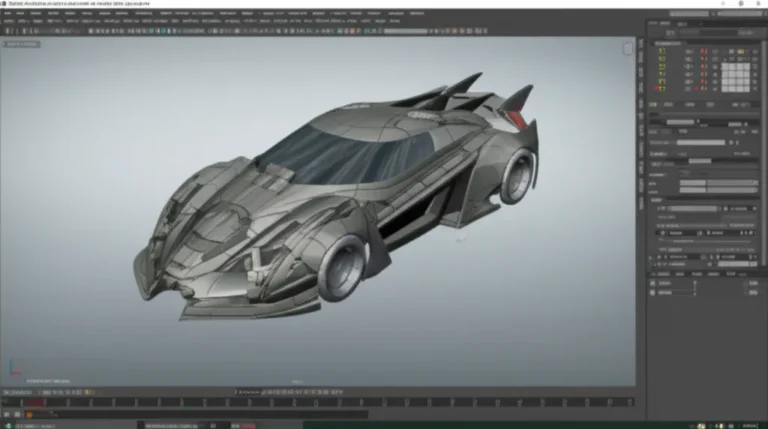
Blender is a powerhouse. It’s a completely free and open-source 3D creation suite that can do… well, almost anything: modeling, sculpting, animation, rendering, video editing, and more. For 3D printing, its sculpting mode is phenomenal.
- ✅ Pros: Absolutely free with no strings attached; unbelievably powerful and versatile; massive online community with endless tutorials.
- ❌ Cons: Has one of the steepest learning curves of any software out there. The interface can be overwhelming for beginners.
Don’t let the learning curve scare you. Many of the amazing fantasy miniatures and character busts you see online are sculpted in Blender. Start with the basics, follow some tutorials (the “donut” tutorial by Blender Guru is a rite of passage), and you’ll be amazed at what you can create.
4. Slicing Software: Preparing Your Model for the Printer
This step is non-negotiable. Every 3D model must be sliced before printing. The slicer takes your STL or 3MF file and generates the G-code, the step-by-step instructions your printer follows. It’s where you control all the critical print settings.
UltiMaker Cura
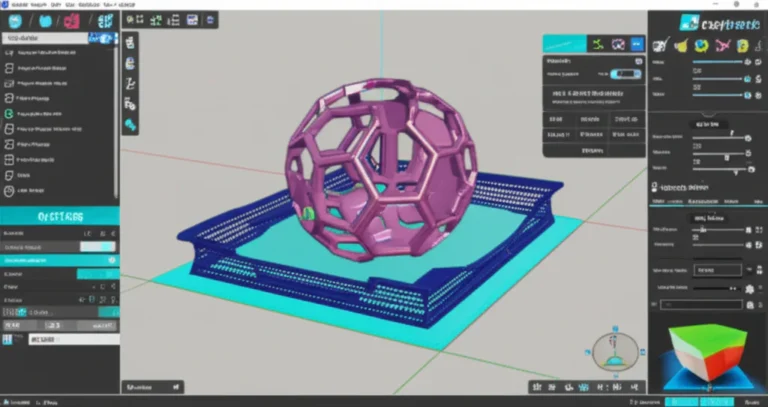
Cura is the most popular slicer in the world, and for good reason. It’s open-source, incredibly powerful, and supports a massive library of 3D printers. Its interface is clean and easy for beginners, but it also offers hundreds of settings for experts to tweak.
- ✅ Pros: Free and open-source; huge community and printer support; great balance of simplicity and deep customization.
- ❌ Cons: With so many settings, it can sometimes be hard to diagnose print issues.
PrusaSlicer
Developed by the renowned 3D printer manufacturer Prusa Research, PrusaSlicer is another top-tier, open-source option. It’s known for its clean interface, innovative features, and excellent default profiles, especially if you own a Prusa printer.
- ✅ Pros: Free and open-source; excellent feature set and print quality; great support system.
- ❌ Cons: Has slightly less third-party printer support out-of-the-box compared to Cura, but you can add custom profiles.
Cura vs. PrusaSlicer? Honestly, you can’t go wrong with either. They are both fantastic. We recommend trying both to see which workflow you prefer. Many on our team switch between them depending on the project!
5. Software for Repairing and Optimizing 3D Models
Sometimes you’ll download a model that looks perfect, but the slicer throws up errors. This is often due to issues like holes in the mesh, inverted normals, or non-manifold geometry.
Autodesk Meshmixer
Though no longer in active development, Meshmixer is still a legendary and free tool for STL repair and manipulation. It’s like a Swiss Army knife for 3D models. Its analysis and repair tools are excellent at automatically detecting and fixing problems.
- ✅ Pros: Free; powerful automatic repair functions; great for sculpting, combining, and optimizing models.
- ❌ Cons: No longer being updated, though many of its features are being integrated into Fusion 360.
Other great options include Microsoft 3D Builder (surprisingly powerful and simple for automatic repairs) and the repair functions built into slicers like PrusaSlicer and even online tools.
📏 Does the Size of My 3D Printer Limit the Size of My Models?
Yes, the build volume of your printer dictates the maximum size of a single object you can print. But does that mean you can’t create something huge? Absolutely not!
The secret is software. Using your modeling software, you can slice a large model into smaller, interlocking pieces that fit on your print bed. Think of it like a 3D puzzle. You can add alignment pins and sockets to your design to make assembly a breeze. We’ve printed full-size cosplay helmets and enormous architectural models on standard desktop printers using this technique. It just takes a bit of planning in your CAD or modeling program.
🔄 Can I Print Objects with Moving Parts? Tips for Functional Prints
Yes! This is one of the most magical aspects of 3D printing. Print-in-place designs are models that come off the print bed with fully functional, moving parts—no assembly required. Think hinges, gears, and chain links.
The key to this is tolerancing in your design software. You need to design a specific, small gap (usually 0.2mm to 0.4mm) between the moving parts. This gap is small enough that the printer can bridge over it without support material, but large enough that the parts don’t fuse together during printing. Nailing these tolerances requires a well-calibrated printer and some trial and error, but the results are incredibly rewarding.
⏳ How Long Does It Take to 3D Print an Object? Factors That Affect Print Time
Ah, the eternal question! The answer can range from 30 minutes to several days. The time it takes is a balancing act controlled by your slicer settings.
- Object Size & Complexity: Bigger, more detailed objects take longer.
- Layer Height: Thinner layers = more layers = more time.
- Infill Density: The internal support structure. A mostly hollow object (15% infill) prints much faster than a solid one (100% infill).
- Print Speed: The speed at which the print head moves. Pushing it too fast can sacrifice quality.
Your slicer software will give you a very accurate time estimate before you start, so you’ll always know what you’re in for.
🏭 Common Applications of 3D Printing: From Hobbyists to Industry
3D printing is no longer just for hobbyists making trinkets. It’s a transformative technology across countless industries.
- Rapid Prototyping: This is the classic application. Companies can design, print, and test a physical prototype in a single day, drastically speeding up product development.
- Manufacturing Aids: Creating custom jigs, fixtures, and tools on-demand to make assembly lines more efficient.
- Healthcare: Custom prosthetics, patient-specific surgical guides, and detailed anatomical models for planning complex surgeries.
- Aerospace & Automotive: Creating lightweight, complex parts and custom tooling.
- Education: An invaluable tool for bringing concepts to life in STEM fields. Check out our articles on 3D Printing in Education.
🔧 Printing Replacement Parts: Can 3D Printing Save the Day?
Absolutely! This is one of our favorite uses for 3D printing. That broken battery cover on your remote? The little plastic knob on your dishwasher? Instead of throwing the whole thing out, you can often design and print a replacement part in a few hours.
This requires some basic measurement skills (a good pair of digital calipers is a must-have) and some practice in CAD software like Fusion 360. There are also vast online libraries of 3D Printable Objects, like Thingiverse, where you might find someone has already designed the exact part you need.
🌈 Printing in Multiple Colors: What You Need to Know
Want to print more than one color in a single object? You have a few options:
- Pause and Swap: The simplest method. You can program a pause at a specific layer height in your slicer’s G-code. When the printer pauses, you manually swap the filament for a new color and resume the print. This is great for creating colored text or logos on a flat surface.
- Multi-Material Units (MMUs): Some printers have add-on units like Prusa’s MMU or Bambu Lab’s AMS (Automatic Material System) that can automatically feed and switch between multiple spools of filament during a print. This allows for complex, multi-colored models.
- IDEX (Independent Dual Extruders): These printers have two separate print heads, allowing them to print with two different colors or materials simultaneously.
Your slicer software is key here, as it needs to support these advanced features to generate the correct G-code for filament changes.
🧩 Printing Flexible and Transparent Objects: Materials and Software Tips
3D printing isn’t limited to hard, rigid plastics. With the right filament and settings, you can create amazing things.
- Flexible Objects: Using a material like TPU (Thermoplastic Polyurethane), you can print rubbery, flexible parts like phone cases, gaskets, and durable hinges. Printing TPU requires slower speeds, which you’ll set in your slicer, and often a “direct drive” extruder for best results.
- Transparent Objects: Filaments like PETG and some specialty PLAs can produce translucent or “water clear” parts. To achieve the best transparency, you’ll need to fine-tune your slicer settings: print with a high temperature, 100% infill, and a very slow speed to ensure the layers melt together seamlessly.
🧪 How Filament Type Affects Print Quality: Choosing the Right Material
The material you choose has a massive impact on the final print’s look, feel, and strength. Each material has a unique profile in your slicer with specific temperature and speed settings.
- PLA (Polylactic Acid): The most popular filament. It’s easy to print, comes in endless colors, and is made from renewable sources. Great for decorative objects but can be brittle.
- PETG (Polyethylene Terephthalate Glycol): A great all-rounder. More durable and temperature-resistant than PLA, and can be food-safe.
- ABS (Acrylonitrile Butadiene Styrene): Very strong and impact-resistant (LEGO bricks are made of ABS). It requires higher temperatures and an enclosed printer to prevent warping.
- ASA (Acrylonitrile Styrene Acrylate): Similar to ABS but with the added benefit of being UV-resistant, making it perfect for outdoor parts.
🏗️ Printing Large-Scale Objects on Desktop 3D Printers: Is It Possible?
As we mentioned before, yes! The key is using your 3D modeling software to strategically split your model into smaller, manageable parts.
Pro Tip: When splitting a model, don’t just use flat cuts. Design in features like dovetails, puzzle-piece connectors, or channels for alignment rods. This will make gluing and assembling the final piece much stronger and more accurate. Software like Fusion 360 is perfect for this kind of precise work.
🧪 Creating Functional Prototypes: Software and Printing Tips
When you’re moving beyond decorative prints and into functional prototypes, your software choices and slicer settings become critical.
- Software: Use a CAD program like Fusion 360 or Onshape. The ability to model precise dimensions, test virtual assemblies, and easily iterate on designs is essential.
- Slicer Settings: Pay close attention to infill percentage and wall count. For a strong functional part, you’ll want to use a higher infill (40-70%) and increase the number of walls (or perimeters) to 3 or 4. This creates a much more robust object.
♻️ Using Recycled Materials for 3D Printing: Eco-Friendly Options
The 3D printing community is increasingly focused on sustainability. One of the most exciting developments is the availability of high-quality recycled filament. Companies like FormFutura, Reflow, and 3DJake offer filaments made from post-industrial waste or shredded failed prints.
This rPLA or rPETG is made from plastic waste that is shredded, melted, and re-extruded into new filament. It’s a fantastic way to reduce your environmental footprint without sacrificing quality. The color might be less consistent from spool to spool, but it’s perfect for functional parts or models you plan to paint.
🖨️ How to Choose the Right 3D Printer and Software for Your Projects
Feeling overwhelmed by the options? Let’s simplify it.
- What will you make?
- Miniatures & Characters: You’ll want a resin (SLA) printer for high detail and sculpting software like Blender or ZBrush.
- Functional Parts & Prototypes: A filament (FDM) printer is your workhorse. Start with Tinkercad and plan to graduate to Fusion 360.
- General Hobbyist: An FDM printer is the most versatile. A combination of Tinkercad for quick designs and Blender for more artistic projects is a great free toolkit.
- What’s your budget?
- You can get a fantastic FDM printer and use completely free software (Tinkercad, Blender, Cura) to get started. Check out our 3D Printer Reviews for the latest recommendations.
🛡️ Ensuring Structural Integrity in Your 3D Prints: Design and Software Tricks
A beautiful print that snaps in half is useless. Strength comes from both good design and smart slicer settings.
In Your Design Software:
- Add Fillets and Chamfers: Instead of sharp 90-degree angles, add rounded (fillets) or beveled (chamfers) edges. This distributes stress and makes parts much stronger.
- Use Ribs and Gussets: For thin walls, adding perpendicular support ribs can dramatically increase stiffness without adding much material or print time.
In Your Slicer Software:
- Print Orientation: This is HUGE. FDM prints are strongest along their layer lines (X/Y axes) and weakest between layers (Z axis). Think of it like a deck of cards—strong when you press on top, but easy to split from the side. Always orient your part so that the primary forces will be applied along the layer lines, not perpendicular to them.
- Increase Wall/Perimeter Count: The outer shells of your print contribute the most to its strength. Increasing the wall count from 2 to 4 has a much bigger impact on strength than increasing infill.
- Boost Infill Density: For parts that need to withstand compression, a higher infill (50% or more) is key. The infill pattern also matters; patterns like gyroid or honeycomb are strong in multiple directions.
🔍 Printing Intricate Details: Software Settings and Design Tips
Want to print tiny, intricate details? Your success will be a combination of your model, your slicer settings, and your printer’s capabilities.
- Design for Printing: In your modeling software, be aware of your printer’s limitations. Avoid extremely thin walls or features smaller than your nozzle diameter (typically 0.4mm).
- Slicer Settings:
- Lower Your Layer Height: A 0.1mm layer height will capture much more detail than a 0.2mm height.
- Slow Down: Reduce your print speed, especially for outer walls and top layers. This gives the filament more time to lay down accurately.
- Enable “Print Thin Walls”: Most slicers have a setting that allows them to attempt to print features that are thinner than the nozzle width.
📚 Resources and Communities for 3D Modeling and Printing Enthusiasts
You are not alone on this journey! The 3D printing community is one of the most helpful and collaborative groups out there.
- Model Repositories:
- Thingiverse: One of the largest and oldest sites for free 3D models.
- Printables: Formerly PrusaPrinters, an excellent site with a great community and high-quality models.
- MyMiniFactory: Curated models with a focus on quality, especially for gaming and miniatures.
- Learning & Community:
- YouTube: An endless source of tutorials for every software and printer imaginable. Channels like Maker’s Muse, CNC Kitchen, and Thomas Sanladerer are legendary.
- Reddit: Subreddits like r/3Dprinting and r/FixMyPrint are fantastic places to ask questions and show off your creations.
Conclusion: Mastering 3D Modeling Software for Your Printing Success

So, what have we learned on this whirlwind tour of 3D modeling software for printing? The truth is, there’s no one-size-fits-all answer, but there is a perfect fit for you — whether you’re a total beginner or a seasoned engineer.
Beginner? Start with Tinkercad or SelfCAD to get your feet wet without drowning in complexity.
Ready to level up? Jump into Fusion 360 for precision and power, or Blender if you want to sculpt stunning, organic shapes.
Don’t forget the slicer! Programs like Cura and PrusaSlicer are your indispensable partners, translating your digital dreams into printer-ready instructions.
Remember, the size of your printer doesn’t limit your creativity — smart software lets you slice and dice your models into manageable pieces. And yes, you can print moving parts, multi-color objects, flexible materials, and even recycled filament — it’s all about choosing the right software, materials, and settings.
Our team at 3D Printed™ has seen firsthand how mastering these tools transforms ideas into reality — from custom drone frames to replacement parts that saved the day. So, don’t be intimidated by the software jungle. Start small, experiment, and soon you’ll be designing and printing like a pro.
Ready to get started? Dive into the recommended software and resources below, and happy printing! 🎉
Recommended Links for 3D Modeling and Printing Software
👉 CHECK PRICE on:
- Autodesk Tinkercad: Thingiverse Search | Tinkercad Official Website
- SelfCAD: Thingiverse Search | SelfCAD Official Website
- Autodesk Fusion 360: Thingiverse Search | Fusion 360 Official Website
- Blender: Thingiverse Search | Blender Official Website
- UltiMaker Cura: Thingiverse Search | Cura Official Website
- PrusaSlicer: Thingiverse Search | PrusaSlicer Official Website
- Autodesk Meshmixer: Thingiverse Search | Meshmixer Official Website
Books to Boost Your Skills:
- 3D Printing Failures: How to Diagnose and Repair All 3D Printing Issues by Sean Aranda — Amazon
- Mastering Autodesk Fusion 360 by Paul Munford — Amazon
- Blender For Dummies by Jason van Gumster — Amazon
Frequently Asked Questions About 3D Modeling Software
How do I export and prepare my 3D models for printing using my chosen software?
Exporting your model typically involves saving it in a 3D printable file format, most commonly .STL or .OBJ. These formats describe the surface geometry of your model without color or texture data, which is perfect for most printers.
Step-by-step:
- Finish your design in your modeling software.
- Use the “Export” or “Save As” function.
- Select
.STLor.OBJformat. - Import the file into your slicer software (e.g., Cura, PrusaSlicer).
- Configure print settings (layer height, infill, supports).
- Slice and export the G-code for your printer.
Many programs, like Fusion 360 and Blender, have built-in export options tailored for 3D printing.
What are the system requirements for running 3D modeling software for printing?
System requirements vary widely:
- Beginner-friendly tools like Tinkercad are web-based and run on almost any modern computer or even tablets.
- Mid-level software like SelfCAD requires a decent internet connection and a modern browser.
- Professional CAD and sculpting software like Fusion 360 and Blender need more powerful hardware — a multi-core CPU, 8GB+ RAM, and a dedicated graphics card are recommended for smooth performance.
Always check the official software site for the latest requirements. For example, Blender’s requirements are well documented.
Can I use CAD software to create 3D models for printing, and if so, which ones are recommended?
✅ Absolutely! CAD software is ideal for creating precise, functional parts.
Recommended CAD software:
- Fusion 360: Best for hobbyists and professionals, free for personal use.
- Onshape: Cloud-based CAD with a free plan for makers.
- SolidWorks: Industry standard but expensive; often used in professional settings.
CAD programs allow parametric modeling, meaning you can change dimensions on the fly, which is invaluable for engineering parts.
What are the differences between free and paid 3D modeling software for 3D printing?
Free software:
- Often open-source or with free tiers (e.g., Blender, Tinkercad, Cura).
- Great for beginners and hobbyists.
- May have limited features or require more manual work.
Paid software:
- Offers advanced features, better support, and integration (e.g., Fusion 360 subscription for commercial use).
- Often includes simulation, CAM, or collaboration tools.
- Usually more polished interfaces and professional-grade capabilities.
For most hobbyists, free software is more than sufficient. Paid options shine in professional or commercial contexts.
How do I choose the right software for 3D printing based on my skill level and needs?
- Beginner: Start with Tinkercad or SelfCAD — easy to learn, free, and web-based.
- Intermediate: Try Fusion 360 or Blender for more complex designs.
- Advanced: Use professional CAD suites like SolidWorks or advanced sculpting tools like ZBrush.
Consider what you want to create (functional parts vs. artistic models), your budget, and your willingness to learn.
What is the best 3D modeling software for beginners to create printable models?
Tinkercad is the gold standard for beginners. Its drag-and-drop interface and simple shape combinations make it easy to create printable models quickly.
What are the best free software options for 3D modeling for printing?
- Tinkercad: Beginner-friendly, web-based.
- Blender: Powerful, open-source, great for sculpting and modeling.
- Fusion 360: Free for personal use, professional-grade CAD.
- Cura / PrusaSlicer: Essential slicers, free and open-source.
Can beginners use CAD software to create 3D models for printing?
Yes! CAD software like Fusion 360 offers free licenses for hobbyists and has extensive tutorials. While the learning curve is steeper than Tinkercad, the payoff is huge in precision and control.
Which software is recommended for designing complex 3D printable objects?
For complex mechanical parts or assemblies, Fusion 360 and Onshape are excellent. For organic, artistic models, Blender or ZBrush are preferred.
How do I choose the right 3D modeling software for my printer?
Most printers accept standard file formats like .STL or .OBJ, so compatibility is rarely an issue. Focus instead on software that fits your skill level and project needs. Ensure your slicer supports your printer model — Cura and PrusaSlicer cover most popular brands.
Are there any easy-to-learn programs for 3D printing design?
Yes! Tinkercad and SelfCAD are designed for ease of use. They offer tutorials and intuitive interfaces perfect for beginners.
What file formats do 3D modeling software export for printing?
The most common are:
- .STL (Stereolithography): The industry standard for 3D printing.
- .OBJ: Supports color and texture data, used for more complex models.
- .3MF: A newer format that includes metadata and is gaining popularity.
Can I use mobile apps to create 3D models for printing?
Yes, but with limitations. Apps like Shapr3D (iPad) offer powerful CAD modeling on tablets with stylus support. They’re great for on-the-go design but may lack some features of desktop software.
Reference Links and Further Reading
- Autodesk Fusion 360 Official Site
- Blender Official Website
- Tinkercad Official Website
- UltiMaker Cura
- PrusaSlicer
- Meshmixer
- Thingiverse
- 3D Printed™ 3D Design Software Category
- All3DP: The 10 Best Software Tools for Bambu Lab 3D Printers
- FormFutura Recycled Filaments
- Reflow Filament
Ready to start your 3D modeling adventure? Check out our 3D Printable Objects and 3D Printing Innovations for inspiration and practical guides. Happy printing! 🚀